

Connect with an API key
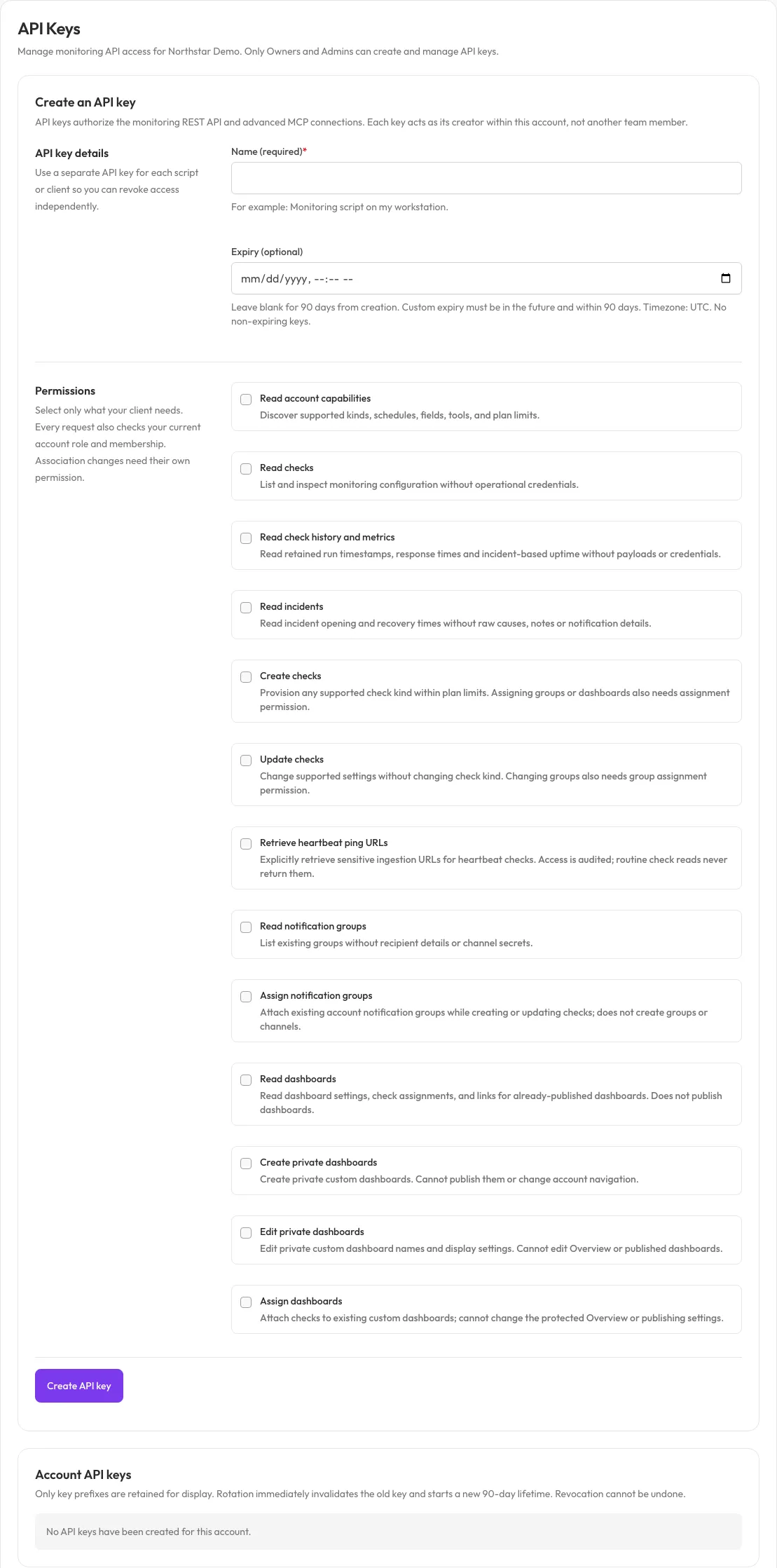
Browser sign-in is the recommended way to connect. Use an API key only for clients that cannot complete browser sign-in. In Pingstack, open Settings → Developer → Connected apps and expand Advanced: connect with an API key; it links to Settings → Developer → API Keys, where Owners and Admins create, rotate and revoke keys.
Create a key with the minimum permissions and expiry. The psa_ key is shown
once; copy it into private client configuration. Do not give it to the
assistant in chat.
This is a configuration fragment, not a command to execute:
{ "mcpServers": { "pingstack": { "type": "http", "url": "https://pingstack.io/mcp", "headers": { "Authorization": "Bearer REPLACE_LOCALLY_WITH_MANUAL_TOKEN" } } }}Merge into the client’s existing private configuration, preserving other servers and settings. Replace the placeholder locally. Protect files with owner-only access and do not commit real tokens in project configuration.
Reload/restart the client and request capabilities. If the intended account or scopes are wrong, correct the grant before permitting writes.
Lifecycle
Section titled “Lifecycle”API keys expire within 90 days. Rotating a key invalidates the old one immediately and restarts the 90 days; replace it everywhere it was used. Revoking takes effect immediately. Revoke when the integration is retired or its environment is compromised.
The same key also works with the REST API. An API key is not an OAuth client ID or secret, so do not combine it with a browser sign-in entry and expect automatic refresh.
See client-specific setup for Copilot, Claude Code and Claude Desktop. Client configuration conventions are not interchangeable.
When OAuth is disabled for the deployment, Connected apps expands this advanced section automatically and explains that browser sign-in is unavailable.