

Brand and configure public views
Admin access is required to manage public branding. Open the account’s public-status settings for defaults. Enable a custom dashboard’s branding override to customize it separately.
| Option | Accepted values / effect |
|---|---|
| Brand name, page title | Up to 100 characters each |
| Description | Up to 500 characters |
| Website URL | HTTP/HTTPS URL without embedded user credentials; up to 2048 characters |
| Support URL | HTTP/HTTPS or valid mailto link; up to 2048 characters |
| Primary color | Six-digit hexadecimal color, such as #7c3aed |
| Default theme | System, light or dark |
| Check layout | Cards or table |
| Visibility | Details, locations, performance and incidents |
| Images | Logo, dark logo and favicon; each can be uploaded or removed |
Dashboard summary-panel and incident-history settings also affect its presentation. Review those alongside branding.
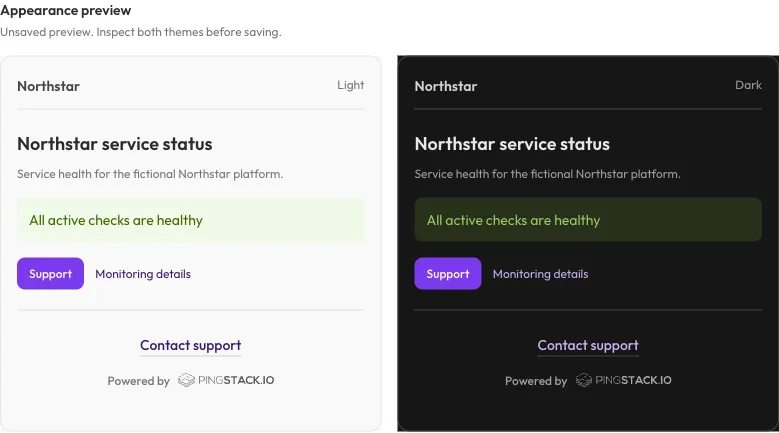
The settings preview compares both themes using sample content. It is not a live health report; inspect the signed-out public page after saving.
Image requirements
Section titled “Image requirements”Use PNG, JPEG or WebP, at most 2 MiB per image. Logos must be between 16 and 4096 pixels on each axis. Favicons must be square, between 32 and 512 pixels. An image’s actual content must satisfy the constraints, not just its filename.
Account branding supplies defaults to dashboards. A dashboard override can still inherit missing images from the account. Verify both themes, especially when a light logo has insufficient contrast on a dark background.
Preview deliberately
Section titled “Preview deliberately”- Save account defaults or enable and save a dashboard override.
- Open the relevant public page signed out.
- Check title, links, image contrast and layout.
- Review which check details and incident text remain visible.
- Disable details that should not be shared.
Display controls do not change check health, incident creation or internal record retention. Public-branding changes are not available through API/MCP.