

Copilot and Claude client setup
Prefer the endpoint and setup instructions shown in your Pingstack account. Client controls can change; consult official documentation when a setting differs. These instructions configure a local client, not a remote/cloud agent.
GitHub Copilot CLI
Section titled “GitHub Copilot CLI”For OAuth, add an HTTP server with the Pingstack endpoint and no headers,
then complete browser sign-in. The CLI supports /mcp add and private
user configuration at ~/.copilot/mcp-config.json.
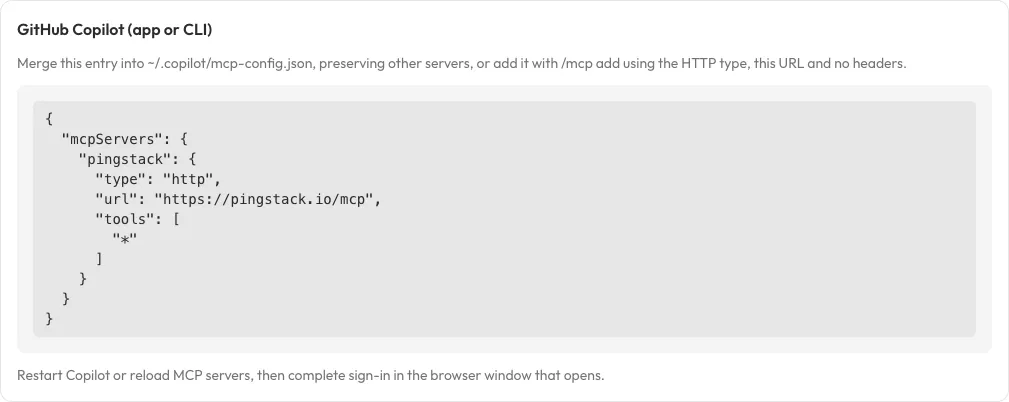
The Pingstack settings panel provides the configuration to merge into your client’s private file. This is the OAuth setup, not a manual-token connection.
For manual authentication, merge the manual fragment
into that user file and add "tools": ["*"] to the server entry.
Restart/reload and inspect /mcp status and tool discovery.
If interactive addition tests the connection without forwarding your bearer headers, use private-file configuration instead. Do not add an OAuth client secret to work around a manual bearer problem. An organizational MCP allowlist may need to permit the Pingstack endpoint.
Official Copilot setup describes current commands and policy behavior.
For a local Copilot app that consumes the same configuration, use its documented reload/configuration controls. Do not assume a cloud or SSH session can edit the local app’s private file.
Agent-assisted local setup
Section titled “Agent-assisted local setup”Pingstack settings also offer secret-free setup prompts for local Copilot and Claude Code sessions. Copy the prompt, not the token, into the coding session. Review proposed configuration changes and any private token-entry program before running it yourself. The token should be entered through hidden local input, never through chat.
The helper must identify the real configuration host and preserve existing entries. If it cannot securely accept a token or identify the client mechanism, use the manual instructions instead. After setup, verify capabilities and a check list without making changes.
Claude Code
Section titled “Claude Code”For OAuth:
claude mcp add --transport http pingstack https://pingstack.io/mcpThen use /mcp and choose authentication. For manual private project-local
configuration, preserve the project’s entry and other settings in
~/.claude.json, merging the HTTP server into its mcpServers map.
Do not commit a real token into .mcp.json.
CLI header arguments can expose tokens through command history/process listings. Prefer private configuration or the client’s secure credential controls rather than typing a live token into a command.
Run claude mcp list, then inspect /mcp inside the client.
Official Claude Code setup describes
scopes and current configuration behavior.
Claude Desktop’s Code tab in a local project is a Code workflow, distinct from Chat. Verify which configuration host it actually uses; do not assume the Desktop Chat configuration controls a Code session.
Claude Desktop Chat: optional local bridge
Section titled “Claude Desktop Chat: optional local bridge”If your Desktop Chat client cannot directly use the hosted HTTP server,
Pingstack settings include an optional third-party mcp-remote bridge
example. Review the bridge before installing or running it.
This is not the Claude Code HTTP configuration.
In Desktop Settings > Developer > Edit Config, merge:
{ "mcpServers": { "pingstack": { "command": "/ABSOLUTE/PATH/TO/npx", "args": [ "-y", "mcp-remote@0.14.3", "https://pingstack.io/mcp", "--transport", "http-only", "--header", "Authorization:${PINGSTACK_AUTH_HEADER}", "--silent" ], "env": { "PINGSTACK_AUTH_HEADER": "Bearer REPLACE_LOCALLY_WITH_MANUAL_TOKEN", "PATH": "/ABSOLUTE/PATH/TO/NODE_DIRECTORY:/usr/bin:/bin:/usr/sbin:/sbin" } } }}Find the local absolute paths with command -v npx and command -v node.
Use the directory containing Node in PATH. Replace the bearer placeholder
locally and protect the file. The bridge reads the bearer from its environment,
not a literal token in process arguments.
Fully quit/restart Desktop and inspect MCP tools. Keep HTTPS; do not add insecure-localhost flags for a hosted connection. The bridge is a separate local process, not a Pingstack server installation.
See the bridge’s configuration documentation and connection troubleshooting.